How to Install ISTA+ 4.59.40 on Windows 10/11
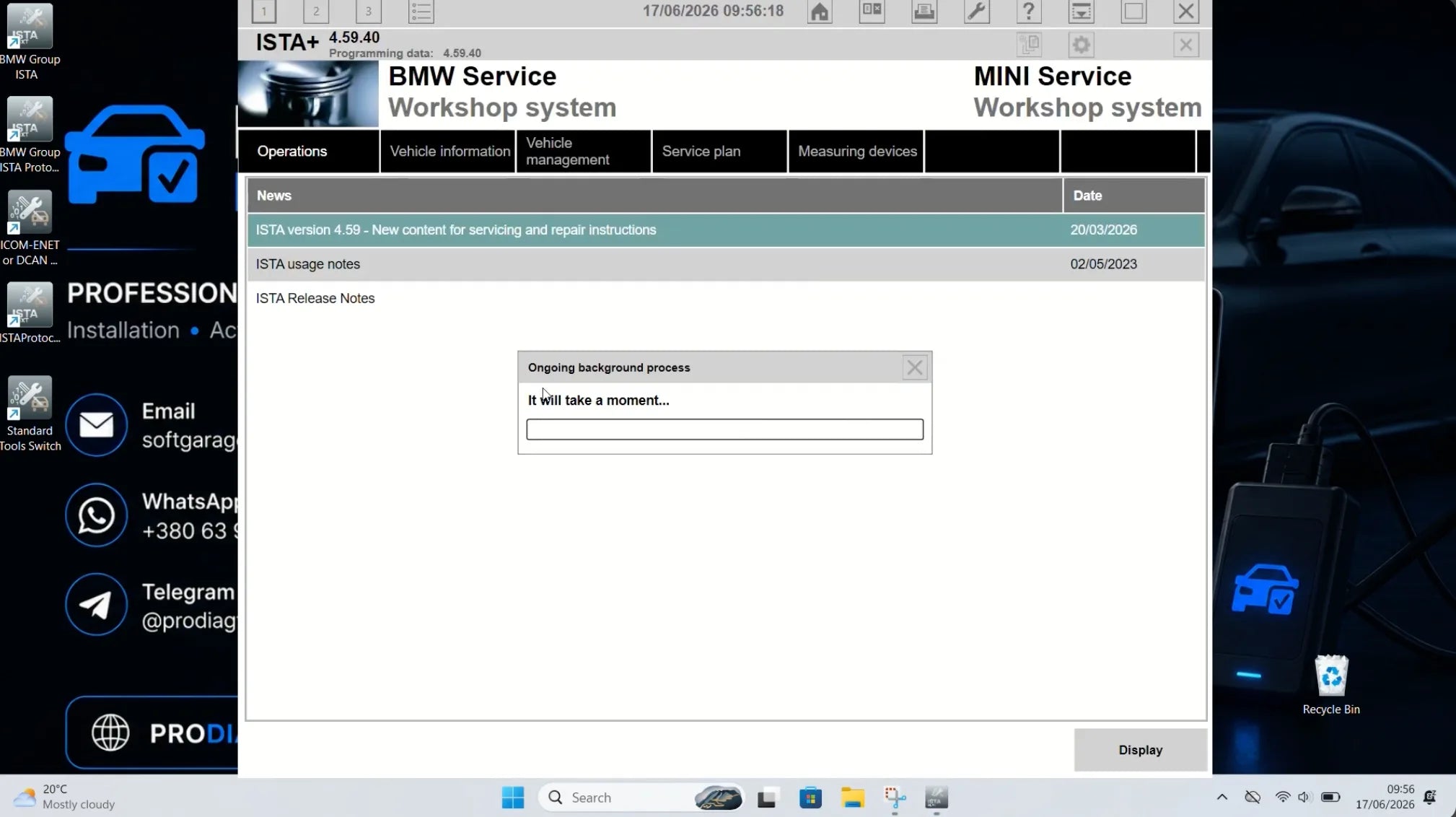
BMW ISTA+ 4.59.40 is a newer standalone diagnostic software release for BMW, MINI, and Rolls-Royce vehicles. This version is designed for Windows 10 and Windows 11 x64 systems and can be used for diagnostics, service functions, vehicle testing, repair information, and programming-data-related work when PSdZData Full is installed.
In this guide, you will learn how to install ISTA+ 4.59.40, how to prepare Windows before installation, how to add PSdZData Full 4.59.40, and how to configure the software for K-DCAN, ENET, or ICOM connection.
This installation guide is based on the standalone setup method. If installed correctly, ISTA+ 4.59.40 works as a standalone BMW diagnostic environment without manually installing BMW Standard Tools or EDIABAS.
You can buy ISTA+ 4.59.40 here:
BMW ISTA+ 4.59.40 diagnostic software
What Is ISTA+ 4.59.40?
ISTA+ 4.59.40 is BMW diagnostic software used by workshops, technicians, and advanced BMW users. It allows you to identify the vehicle, read and clear fault codes, run a full vehicle test, view control unit information, access service procedures, and use guided troubleshooting.
With the correct programming data package, ISTA+ can also work with PSdZData for advanced BMW software-related operations.
ISTA+ 4.59.40 is suitable for BMW, MINI, and Rolls-Royce vehicles that use BMW-based diagnostic systems.
ISTA+ 4.59.40 System Requirements
Before starting the installation, make sure your laptop meets the basic requirements:
- Windows 10 x64 or Windows 11 x64
- 64-bit operating system only
- Administrator account
- 7-Zip installed
- Enough free disk space on drive C:
- Stable internet connection for downloading files
- Windows Defender disabled during installation
- Supported interface: K-DCAN, ENET, or ICOM
For the best result, use a clean Windows installation or a laptop without old broken BMW software installations.
Important Before Installing ISTA+ 4.59.40
Before you begin, there are several important points that can prevent installation errors.
Disable Windows Defender Before Installation
Before installing ISTA+ 4.59.40, disable Windows Defender. If Windows Defender stays enabled, the installation may freeze, stop, or block important files.
When Windows Defender is disabled correctly, the installation process usually takes about one hour, depending on laptop speed and disk performance.
After the installation is complete, do not launch ISTA immediately. First, add the required folders and files to Windows Defender exclusions.
Install 7-Zip
Install 7-Zip before working with ISTA+ and PSdZData archives.
It is recommended to set 7-Zip as the default program for ISTA and PSdZData archive files. This helps avoid extraction issues and makes the installation process more stable.
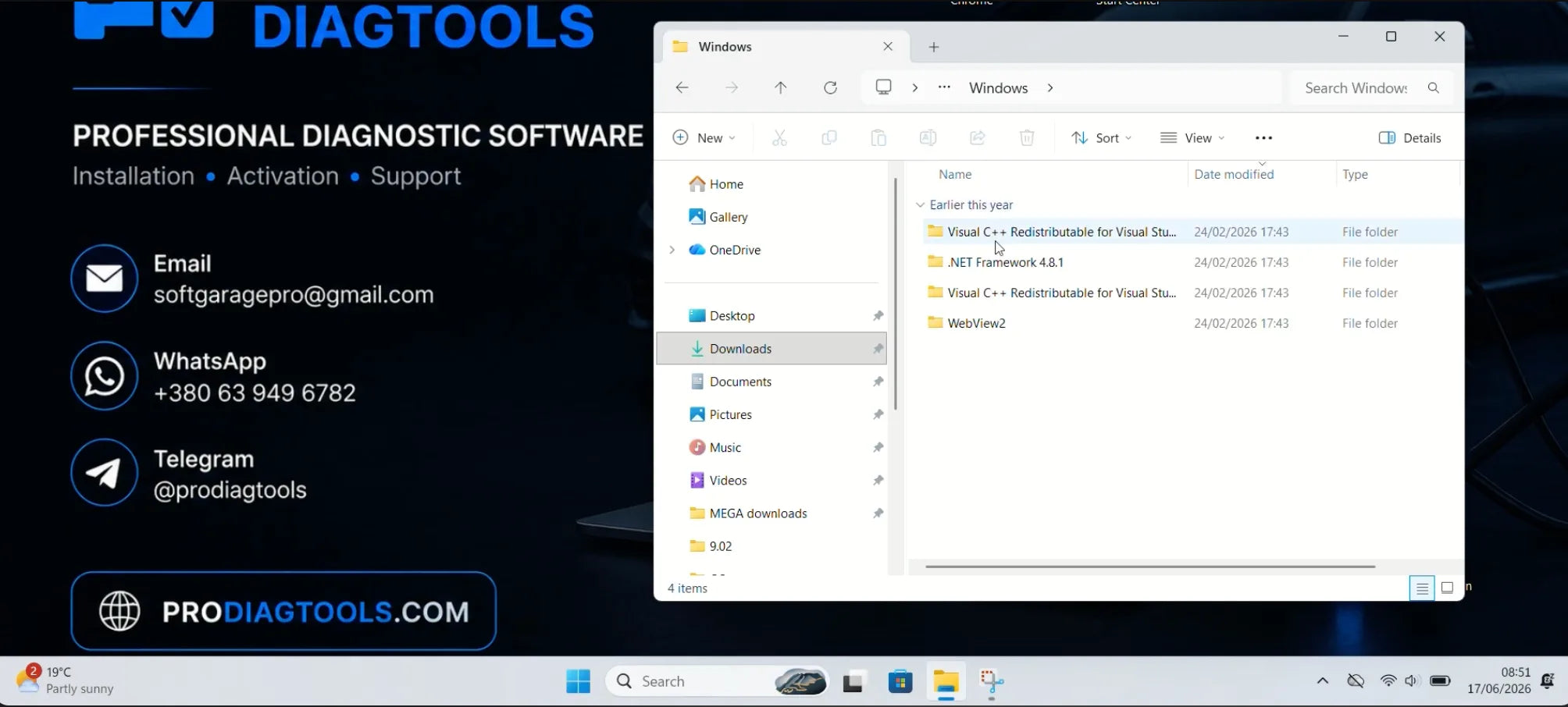
Install all add-ons from the Windows folder
Open the Windows folder included in the installation package.
Install all required add-ons from that folder.
These components are important for correct ISTA+ operation on Windows 10 and Windows 11. If you skip this step, ISTA may start with errors or some functions may not work correctly.
How to Install BMW ISTA+ 4.59.40 Standalone
Follow the steps below to install ISTA+ 4.59.40 correctly.
Step 1: Run the Main ISTA+ Installer
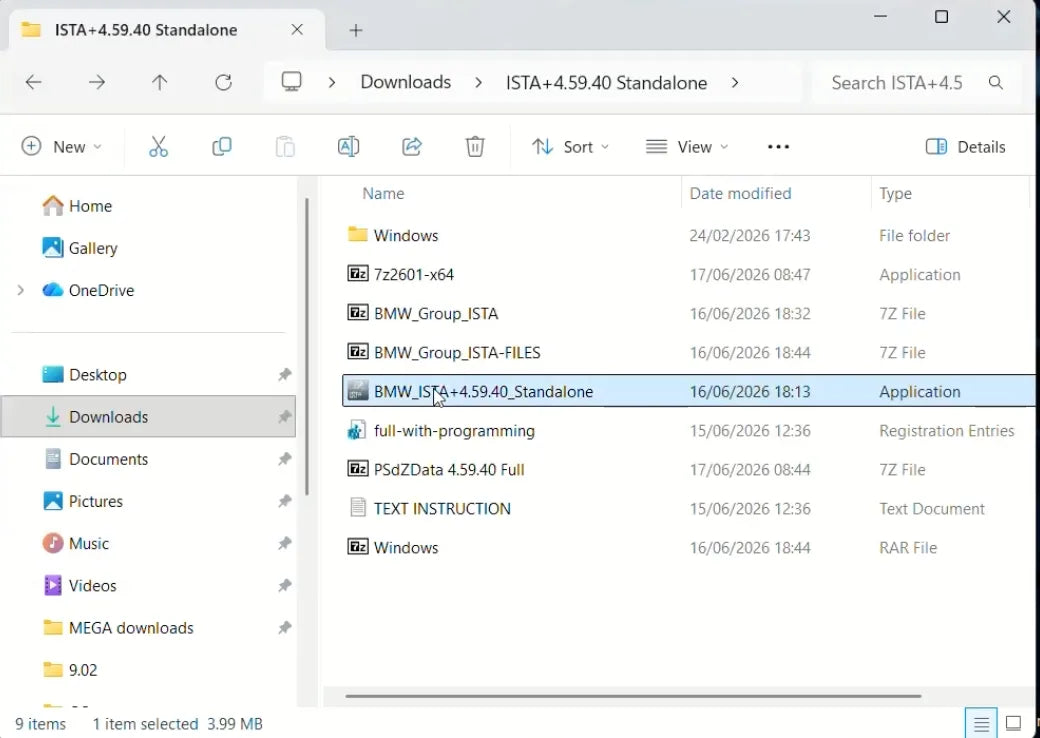
Open the installation folder and run the main standalone installer:
BMW_ISTA+4.59.40_Standalone.exe
Run the installer and follow the setup process.
If the installer asks for a password, use the password provided with your download package.
After the main installation is finished, ISTA+ is ready for diagnostics only. At this stage, you do not need to add Lite Data or Full PSdZData if you only plan to use ISTA for diagnosis, fault codes, service functions, and vehicle tests.
Step 2: Enable Full Version with Programming
If you need the full version with programming data support, you must add the required registry file and install PSdZData Full.
Run the registry file:
full-with-programming.reg
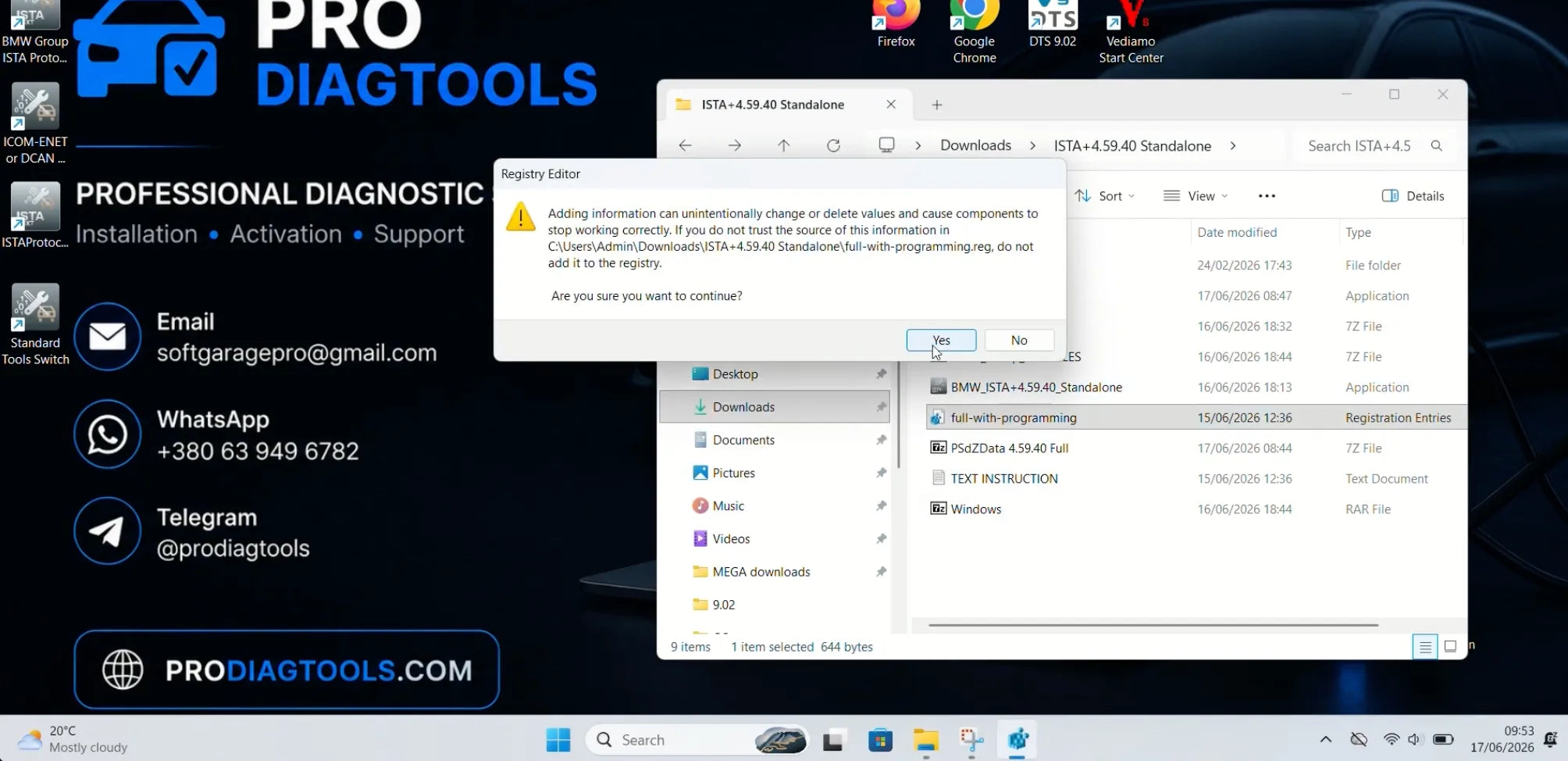
Confirm the registry changes when Windows asks for permission.
This step enables the full programming configuration for ISTA+.
Step 4: Extract PSdZData Full 4.59.40
Download and extract:
PSdZData Full 4.59.40
Use 7-Zip for extraction.
After extraction, copy the psdzdata folder to the correct ISTA folder:
C:Program Files:BMW:ISPI:TRIC:ISTA:PSdZ:data_swi
Make sure the files are placed inside the correct directory. If PSdZData is copied to the wrong folder, ISTA may open, but programming data will not be detected correctly.
Step 5: Add ISTA+ to Windows Defender Exclusions
After the installation is finished, do not start ISTA immediately.
First, add the full BMW folder to Windows Defender exclusions:
C:ProgramFiles:BMW
Also add the ISTA executable file separately:
ISTAGUI.exe
This is very important because Windows Security may block, quarantine, or remove important ISTA files. If this happens, ISTA may freeze, fail to start, or work incorrectly.
Step 6: Run ISTA+ as Administrator
Always start ISTA+ with administrator rights.
Right-click the ISTA+ shortcut and choose:
Run as Administrator
Running ISTA without administrator rights may cause access problems, connection issues, or missing functions.
For stable operation, ISTA+ should always be launched as Administrator.
How to Connect K-DCAN to ISTA+ 4.59.40
By default, ISTA+ is usually configured for ICOM and ENET connection. If you want to use a K-DCAN cable, you need to switch the configuration before opening ISTA.
Before launching ISTA:
- Right-click the desktop switch tool.
- Run it as Administrator.
- Use ICOM-ENET or DCAN Switch.
- Select K-DCAN mode.
- Set the cable in Windows to:
- COM3
- Latency Timer = 1
There is no need to manually install BMW Standard Tools or EDIABAS for this standalone ISTA+ setup. The switch tool changes the required configuration for K-DCAN.
When you want to use ICOM or ENET again, run the switch tool again and restore the settings back to ICOM / ENET.
Why K-DCAN May Not Connect
If K-DCAN does not work with ISTA+ 4.59.40, check these points:
- K-DCAN mode was not selected in the switch tool
- the switch tool was not run as Administrator
- the cable is not set to COM3
- Latency Timer is not set to 1
- the cable driver is missing or incorrect
- ignition is not switched on
- Windows Defender blocked ISTA files
- ISTA was not restarted after changing settings
K-DCAN is mainly used for BMW E Series vehicles. For BMW F Series and G Series, ENET or ICOM is usually the correct choice.
How to Connect ENET to ISTA+ 4.59.40
ENET is commonly used for BMW F Series and G Series diagnostics.
To use ENET:
- Connect the ENET cable to the vehicle OBD port.
- Connect the Ethernet side to the laptop.
- Turn on ignition.
- Disable Wi-Fi and VPN if needed.
- Restore the switch tool to ICOM / ENET mode.
- Run ISTA+ as Administrator.
- Open Connection Manager and select the vehicle.
ENET is a good option for diagnostics, vehicle identification, service functions, and many software-related tasks on modern BMW platforms.
How to Connect ICOM to ISTA+ 4.59.40
ICOM is the professional BMW diagnostic interface and is recommended for stable workshop use, advanced diagnostics, and programming-related operations.
To use ICOM with ISTA+ 4.59.40:
- connect ICOM to the vehicle
- connect ICOM to the laptop or network
- make sure ICOM is powered correctly
- restore settings to ICOM / ENET
- run ISTA+ as Administrator
- open Connection Manager
If ICOM is working correctly, it should appear in ISTA Connection Manager.
Why ICOM May Not Work with ISTA+ 4.59.40
If ICOM is not detected in ISTA+ 4.59.40, there may be several reasons:
- the ICOM is a Chinese clone
- the firmware is outdated
- network settings are incorrect
- the interface is not powered correctly
- Windows firewall or antivirus blocks communication
- the wrong connection mode is selected
- the ICOM is not compatible with the newer ISTA version
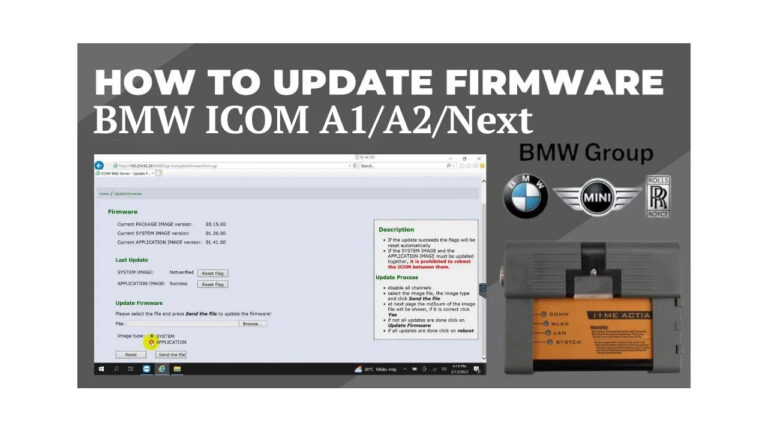
Because ISTA+ 4.59.40 is a newer release, some older ICOM units or clone devices may require a firmware update before they work correctly.
For the most stable result, use an original or high-quality ICOM interface with updated firmware.
Does ISTA+ 4.59.40 Need Standard Tools or EDIABAS?
No. This standalone version of ISTA+ works without manually installing BMW Standard Tools or EDIABAS.
The required configuration is already included in the standalone package. For K-DCAN, use the included switch tool to change the connection mode.
Common ISTA+ 4.59.40 Installation Problems
Installation Freezes
The most common reason is Windows Defender or antivirus protection. Disable Defender before installation and add exclusions after setup.
ISTA Does Not Start
Check if ISTA was blocked by Windows Security. Add C:ProgramFiles:BMW and ISTAGUI.exe to Defender exclusions.
PSdZData Is Not Detected
Make sure PSdZData Full 4.59.40 was extracted to:
C:ProgramFiles:BMW:ISPI:TRIC:ISTA:PSdZ:data_swi
K-DCAN Does Not Work
Check COM3, Latency Timer 1, switch tool mode, driver installation, and administrator rights.
ICOM Does Not Appear
Check firmware, network settings, cable connection, ICOM power, and whether the device is original or clone.
BMW Software Hub — Choose the Right BMW Tool
Not sure whether you need ISTA+, ISTA-P, E-Sys, INPA, K-DCAN, ENET, or ICOM?
Contact us with your:
- BMW model
- year
- chassis series
- interface type
- what you want to do: diagnostics, coding, programming, service functions, or repair information
We will help you choose the right BMW software package for your vehicle.
You can buy ISTA+ 4.59.40 here.
Conclusion
Installing ISTA+ 4.59.40 is straightforward if Windows is prepared correctly and the files are placed in the correct folders.
The most important steps are:
- disable Windows Defender before installation
- install 7-Zip
- run the ISTA+ 4.59.40 standalone installer
- install all add-ons from the Windows folder
- add the full-with-programming registry file if programming support is needed
- extract PSdZData Full 4.59.40 to the correct
data_swifolder - add the BMW folder and ISTAGUI.exe to Defender exclusions
- always run ISTA+ as Administrator
- use the correct connection mode for K-DCAN, ENET, or ICOM
When installed correctly, BMW ISTA+ 4.59.40 provides a powerful standalone diagnostic environment for BMW, MINI, and Rolls-Royce vehicles.
FAQ
How do I install ISTA+ 4.59.40?
Disable Windows Defender, install 7-Zip, run the ISTA+ 4.59.40 standalone installer, install all add-ons from the Windows folder, and add the BMW folder plus ISTAGUI.exe to Windows Defender exclusions before first launch.
Does ISTA+ 4.59.40 work on Windows 11?
Yes. ISTA+ 4.59.40 works on Windows 10 and Windows 11 x64.
Do I need BMW Standard Tools or EDIABAS for ISTA+ 4.59.40?
No. The standalone version works without manual installation of BMW Standard Tools or EDIABAS.
How do I enable programming in ISTA+ 4.59.40?
Run the full-with-programming registry file and extract PSdZData Full 4.59.40 to:
C:Program Files:BMW:ISPI:TRIC:ISTA:PSdZ:data_swi
Where should I copy PSdZData Full 4.59.40?
Copy or extract PSdZData Full 4.59.40 to:
C:Program Files:BMW:ISPI:TRIC:ISTA:PSdZ:data_swi
Why does ISTA+ installation freeze?
Usually because Windows Defender or antivirus software is still active. Disable Windows Defender before installation and add ISTA folders to exclusions after installation.
How do I connect K-DCAN to ISTA+ 4.59.40?
Run the ICOM-ENET or DCAN Switch as Administrator, choose K-DCAN mode, set the cable to COM3, and set Latency Timer to 1.
Why does K-DCAN not work in ISTA+?
The most common causes are wrong switch mode, wrong COM port, latency timer not set to 1, missing driver, or ISTA files blocked by Windows Defender.
How do I connect ENET to ISTA+ 4.59.40?
Connect the ENET cable to the vehicle and laptop, restore the switch to ICOM / ENET mode, disable Wi-Fi if needed, run ISTA+ as Administrator, and open Connection Manager.
Why does ICOM not work with ISTA+ 4.59.40?
The ICOM may be a Chinese clone, have outdated firmware, use incorrect network settings, or be incompatible with the newer ISTA version. Updating ICOM firmware may help.
Should I run ISTA+ as Administrator?
Yes. ISTA+ should always be started with Run as Administrator for stable operation.
Should I add ISTA+ to Windows Defender exclusions?
Yes. Add the full BMW folder and ISTAGUI.exe to Windows Defender exclusions to prevent blocked or quarantined files.