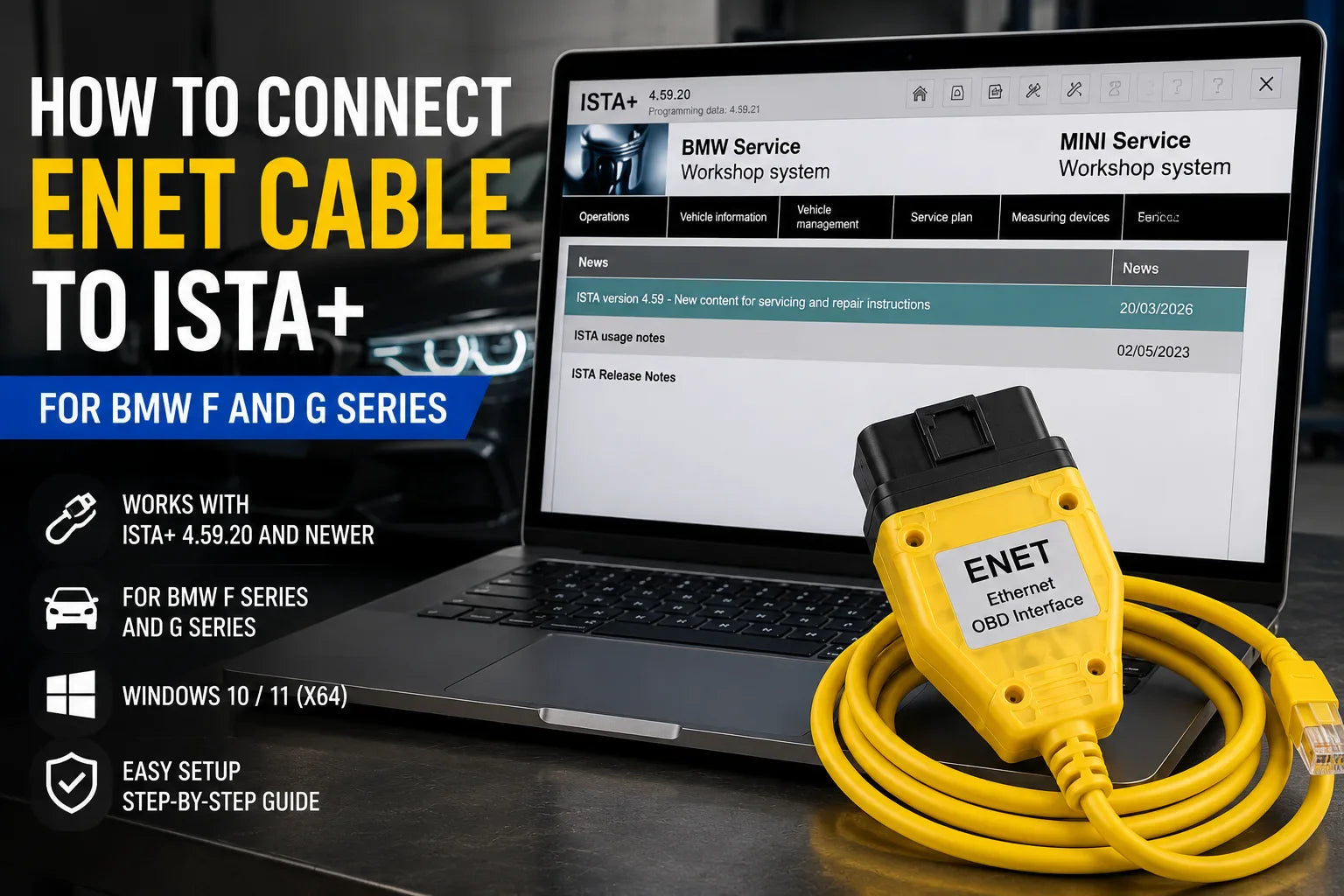
How to Connect ENET Cable to ISTA+ for BMW F and G Series
If you want to use ISTA+ with an ENET cable on BMW F Series or G Series vehicles, the connection must be configured correctly before diagnostics. ENET is one of the most common and convenient interfaces for modern BMW models, especially when working with BMW F chassis and G chassis vehicles.
In this guide, you will learn how to connect an ENET cable to ISTA+, how to prepare Windows network settings, how to choose the correct vehicle interface inside ISTA+, and what to check if ISTA+ does not detect the car.
This guide is suitable for users working with BMW ISTA+ versions such as ISTA+ 4.57.30, 4.58.22, 4.59.20, 4.59.30, 4.59.40, and newer standalone versions.
What Is an ENET Cable for BMW ISTA+?
An ENET cable is an Ethernet-to-OBD interface used for communication between a Windows laptop and many BMW F Series and G Series vehicles. It is commonly used for diagnostics, coding preparation, vehicle identification, service functions, and communication with BMW software such as ISTA+ and E-Sys.
ENET is different from K-DCAN. A K-DCAN USB cable is mainly used for older BMW E Series vehicles, while ENET is used for many newer BMW F and G Series models.
Supported BMW Vehicles
ENET is commonly used for:
- BMW F Series: F10, F20, F25, F30, F32, F15, F16 and other F chassis models
- BMW G Series: G11, G12, G20, G30, G01, G05 and other G chassis models
- Many MINI F Series models
- Some newer BMW platforms that support Ethernet diagnostics
For BMW E Series, use K-DCAN or ICOM, not ENET.
What You Need Before Starting
Before connecting ENET to ISTA+, make sure you have:
- Windows 10 or Windows 11 x64 laptop
- BMW ISTA+ installed
- ENET cable
- BMW F Series or G Series vehicle
- working Ethernet port or USB-to-Ethernet adapter
- ignition switched on
- Wi-Fi disabled during connection
- ISTA+ added to Windows Defender exclusions
- ISTA+ started with Administrator rights
For stable operation, always run ISTA+ as Administrator. Also make sure that the BMW folder and ISTAGUI.exe are added to Windows Defender exclusions. Windows Security can block important ISTA files and cause connection problems.
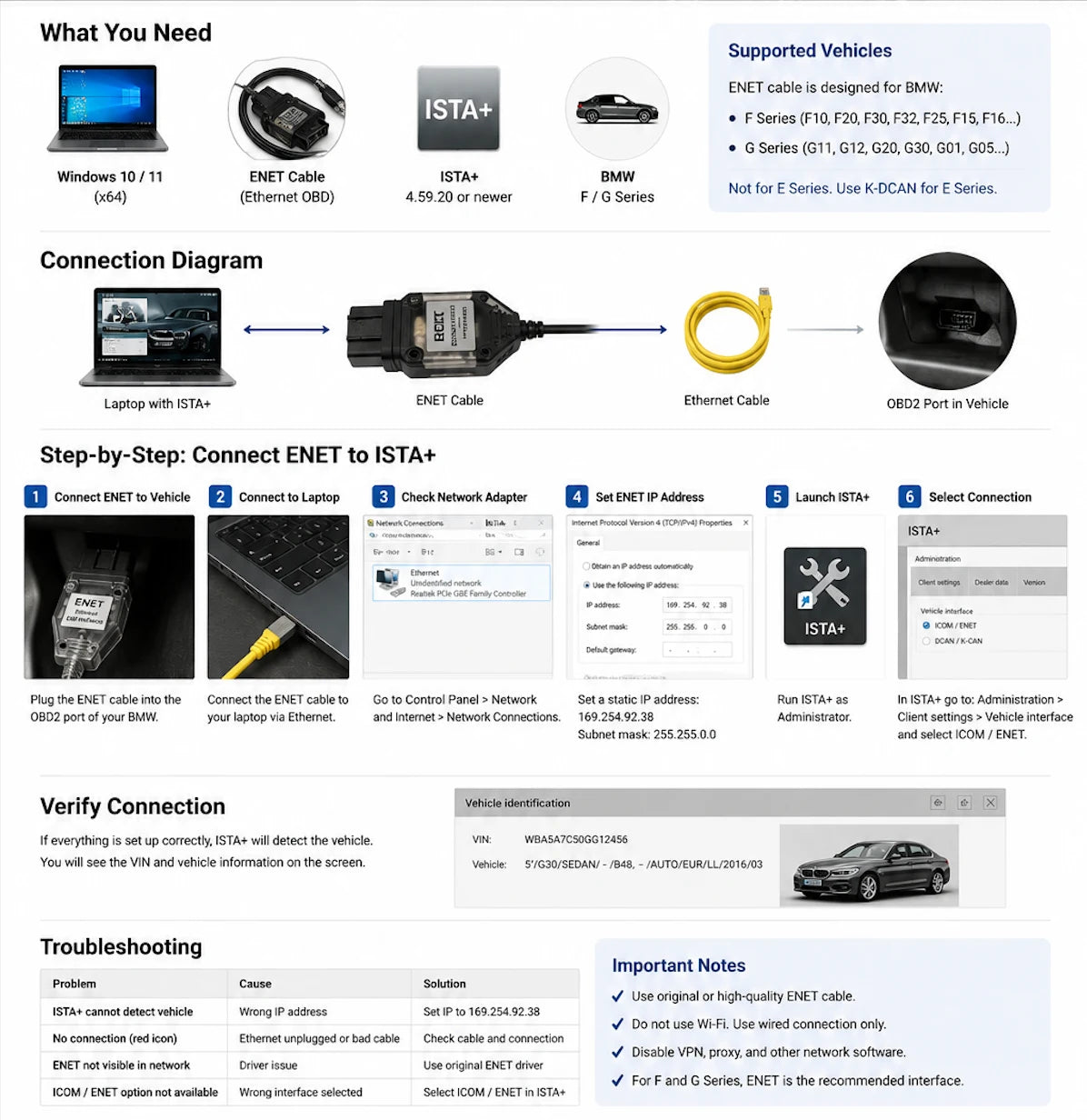
Step 1: Connect the ENET Cable to the Car
Connect the OBD side of the ENET cable to the vehicle’s OBD2 port.
The OBD port is usually located under the dashboard on the driver’s side. Make sure the connector is fully inserted and not loose.
After that, turn on the ignition. For some vehicles, it is enough to press the Start button without pressing the brake pedal.
Step 2: Connect ENET to the Laptop
Connect the Ethernet side of the ENET cable to your laptop.
You can use:
- built-in Ethernet port
- USB-to-Ethernet adapter
Both options can work, but a stable wired connection is important. Do not use Wi-Fi for the vehicle connection.
Step 3: Disable Wi-Fi and VPN
Before launching ISTA+, disable:
- Wi-Fi
- VPN
- proxy software
- other network tools that can interfere with Ethernet communication
ISTA+ should communicate with the car through the ENET Ethernet connection only. If Wi-Fi or VPN is active, ISTA may try to use the wrong network route and fail to detect the vehicle.
Step 4: Check the Ethernet Adapter in Windows
Open Windows network settings and confirm that the Ethernet adapter is active.
You can check it here:
Control Panel > Network and Internet > Network Connections
or:
Settings > Network & Internet > Advanced network settings
The ENET connection may appear as an unidentified network. This is normal.
Step 5: Set ENET IP Address Manually
For many ISTA+ ENET setups, a static IP address can help establish stable communication.
Open the Ethernet adapter properties and go to:
Internet Protocol Version 4 (TCP/IPv4)
Set the following values:
IP address:169.254.92.38
Subnet mask:255.255.0.0
Leave gateway and DNS empty.
Then click OK and close the network settings.
In some cases, automatic IP assignment also works, but if ISTA+ does not detect the vehicle, setting a manual IP is one of the first things to try.
Step 6: Start ISTA+ as Administrator
Right-click the ISTA+ shortcut and select:
Run as Administrator
This is important because ISTA+ may need administrator permissions to access network settings, vehicle interface settings, and local BMW service files.
Do not launch ISTA+ normally if you are troubleshooting connection issues.
Step 7: Select the Correct Vehicle Interface in ISTA+
Open ISTA+ and go to:
Administration > Vehicle interface
For ENET connection, select the interface option related to:
ICOM / ENET
Depending on your ISTA+ version, the wording may be slightly different, for example:
- Dealer organisation ICOM / ENET
- ICOM / ENET
- Dealer organisation ICOM / ENET local area network
Do not select K-DCAN, EDIABAS default settings, or OMITEC when using ENET.
After changing the interface setting, restart ISTA+.
Step 8: Open Connection Manager
After restarting ISTA+, open Connection Manager.
ISTA+ should search for available vehicle connections. If the ENET cable, IP settings, and interface settings are correct, the vehicle should appear in the connection list.
Select the vehicle and continue with vehicle identification.
Step 9: Start Vehicle Identification
Once the vehicle is detected, start the identification process.
ISTA+ should read the VIN and vehicle data automatically. After that, you can continue to:
- read fault codes
- perform a vehicle test
- view control unit tree
- run service functions
- access repair information
- use test plans
If ISTA+ does not read the VIN, check the troubleshooting section below.
Best ENET Settings for ISTA+
For quick reference, use these settings:
- Interface: ICOM / ENET
- Ethernet IP: 169.254.92.38
- Subnet mask: 255.255.0.0
- Gateway: empty
- Wi-Fi: disabled
- VPN: disabled
- ISTA+ launch mode: Run as Administrator
- Windows Defender: BMW folder and ISTAGUI.exe added to exclusions
These settings usually solve most ENET connection problems with ISTA+.
ENET vs K-DCAN vs ICOM
Choosing the right BMW interface depends on the vehicle generation.
ENET is best for many BMW F Series and G Series vehicles. It is simple, fast, and works well for diagnostics and coding preparation.
K-DCAN is mainly used for BMW E Series vehicles. It requires COM port configuration and usually works through EDIABAS 7.3 logic.
ICOM is the professional BMW interface and is recommended for more advanced diagnostic work, stable workshop use, and programming-related operations.
For most F and G Series diagnostics with ISTA+, ENET is usually enough. For programming or more stable professional work, ICOM is often preferred.
Why ISTA+ Does Not Detect ENET Cable
If ISTA+ does not detect the vehicle through ENET, the most common reasons are:
- wrong vehicle interface selected in ISTA+
- Wi-Fi or VPN is active
- Ethernet adapter is disabled
- wrong IP address
- bad ENET cable
- ignition is not switched on
- ISTA+ was not started as Administrator
- Windows Defender blocked ISTA+ files
- firewall or antivirus is blocking network communication
- USB-to-Ethernet adapter driver issue
Start by checking the simple things first: cable connection, ignition, Ethernet adapter, and ISTA+ interface settings.
ENET Cable Connected but No Vehicle in ISTA+
If the ENET cable is connected but the vehicle does not appear in Connection Manager, try this:
- disconnect and reconnect the ENET cable
- disable Wi-Fi
- disable VPN
- set manual IP address
- restart ISTA+
- run ISTA+ as Administrator
- restart the laptop
- try another USB-to-Ethernet adapter if you use one
- test another ENET cable if available
Also make sure the vehicle is awake. Open the driver door, turn on ignition, or press the Start button to wake the network.
Should You Use Built-In Ethernet or USB-to-Ethernet Adapter?
Both can work with ISTA+ and ENET.
A built-in Ethernet port is usually the most stable option. A good USB-to-Ethernet adapter can also work correctly, but cheap adapters may have driver or stability problems.
If ISTA+ does not detect the car through a USB-to-Ethernet adapter, try:
- reinstalling the adapter driver
- using another USB port
- disabling power saving for the adapter
- using a different adapter
- using a laptop with a built-in Ethernet port
How to Disable Power Saving for Ethernet Adapter
Windows may turn off the Ethernet adapter to save power. This can interrupt communication with the vehicle.
To disable it:
- Open Device Manager
- Find your Ethernet adapter
- Open Properties
- Go to Power Management
- Uncheck Allow the computer to turn off this device to save power
- Click OK
This is a useful step if the ENET connection drops or disappears.
Can ENET Be Used for BMW Programming?
ENET can be used for certain software operations, but for serious programming work, ICOM is usually recommended because it provides more stable communication and is the professional BMW workshop interface.
For diagnostics, service functions, vehicle identification, and many software-related tasks, ENET is often enough for F and G Series vehicles.
Important Notes for ISTA+ ENET Connection
Before using ISTA+ with ENET, remember:
- ENET is not for BMW E Series
- use K-DCAN or ICOM for E Series
- disable Wi-Fi and VPN
- use wired Ethernet only
- select ICOM / ENET inside ISTA+
- always run ISTA+ as Administrator
- keep ISTA+ excluded from Windows Defender
- make sure the car ignition is on
- use a good-quality ENET cable
BMW Software Hub — Choose the Right BMW Tool
Not sure whether you need ISTA+, ISTA-P, E-Sys, INPA, K-DCAN, ENET, or ICOM?
Contact us with your:
- BMW model
- production year
- chassis series
- interface type
- what you want to do: diagnostics, coding, programming, or service functions
We will help you choose the right BMW software and interface for your vehicle.
You can buy BMW ISTA+ here.
Conclusion
Connecting an ENET cable to ISTA+ for BMW F and G Series is usually simple if the correct settings are used. Connect the ENET cable to the vehicle and laptop, disable Wi-Fi and VPN, configure the Ethernet adapter if needed, run ISTA+ as Administrator, and select ICOM / ENET in the vehicle interface settings.
For BMW F Series and G Series diagnostics, ENET is one of the easiest and most practical connection options. If ISTA+ does not detect the car, check the IP address, network adapter, ignition state, Defender exclusions, and interface selection.
FAQ
How do I connect an ENET cable to ISTA+?
Connect the ENET cable to the vehicle OBD port and to your laptop Ethernet port. Disable Wi-Fi and VPN, run ISTA+ as Administrator, select ICOM / ENET in vehicle interface settings, and open Connection Manager.
What IP address should I use for ENET with ISTA+?
A common manual IP setting is:
IP address: 169.254.92.38
Subnet mask: 255.255.0.0
Gateway and DNS can usually be left empty.
Does ENET work with BMW E Series?
No. ENET is mainly for BMW F Series and G Series. For BMW E Series, use K-DCAN or ICOM.
Which ISTA+ interface should I select for ENET?
Select the ICOM / ENET option in ISTA+ vehicle interface settings. Do not select K-DCAN or EDIABAS default settings when using ENET.
Why does ISTA+ not detect my car with ENET?
Common reasons include wrong interface selection, Wi-Fi or VPN interference, wrong IP address, Ethernet adapter driver issue, bad ENET cable, ignition off, or Windows Defender blocking ISTA+ files.
Do I need to run ISTA+ as Administrator?
Yes. ISTA+ should always be started with Run as Administrator for better stability and fewer connection problems.
Should I disable Wi-Fi when using ENET?
Yes. It is recommended to disable Wi-Fi so ISTA+ communicates only through the wired ENET connection.
Can I use a USB-to-Ethernet adapter with ENET?
Yes, a USB-to-Ethernet adapter can work, but a built-in Ethernet port is usually more stable. If there are connection problems, check the adapter driver or try another adapter.
Can I use ENET for BMW coding?
ENET is commonly used for coding-related work with BMW F and G Series vehicles, especially with E-Sys. For ISTA+ diagnostics and service functions, ENET is also a common interface.
Is ICOM better than ENET?
ICOM is the professional BMW workshop interface and is usually better for programming and stable advanced work. ENET is simpler and works well for many F and G Series diagnostic tasks.